Get your Vercel token for Claude Code
Step by step, with screenshots: create a free Vercel account, make an access token, and hand it to Claude Code so it can put your website live.
Claude Code can build you a website in minutes. To put it live on the internet, it needs permission to deploy to your Vercel account. That permission is a token: a long, password-like key you create once and hand to Claude Code.
This takes about 5 minutes. Do it before class.
You need: a laptop with Claude Code installed, a phone that can receive texts, and a GitHub account (free at github.com if you don't have one).
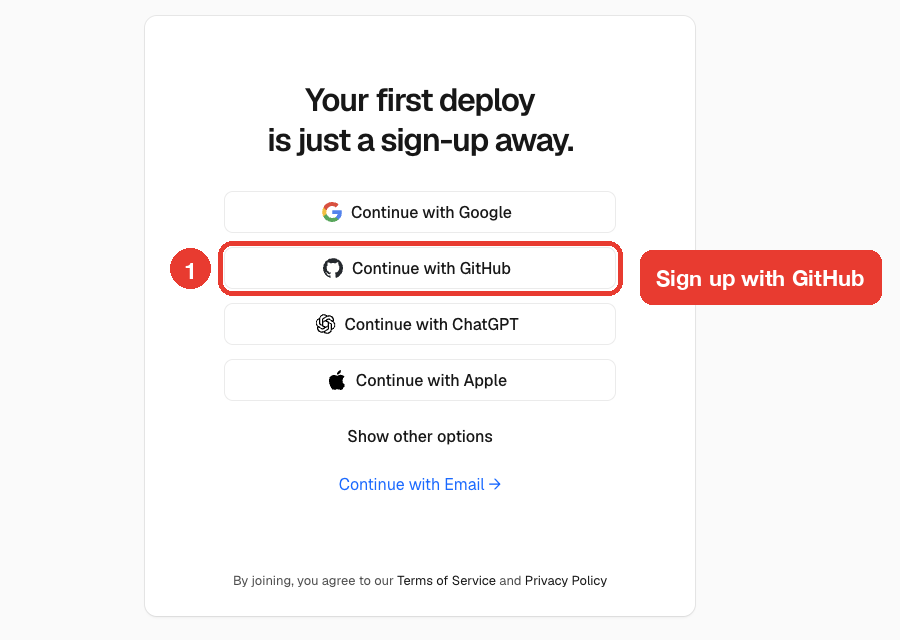
1. Sign up with GitHub
Go to vercel.com/signup and click Continue with GitHub. Approve the GitHub screen that follows.
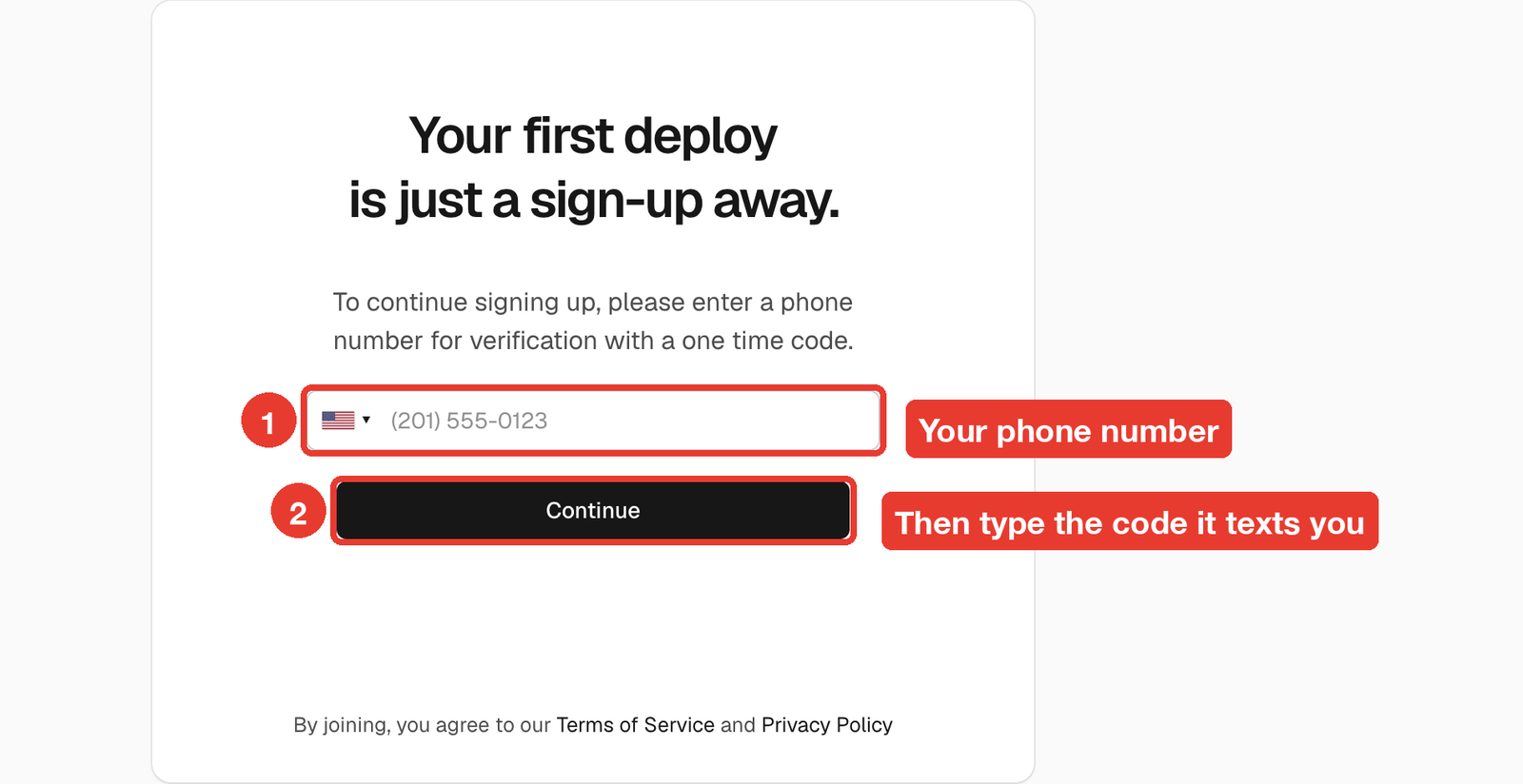
2. Verify your phone
Vercel may ask for a phone number. Enter yours, click Continue, then type the code it texts you.
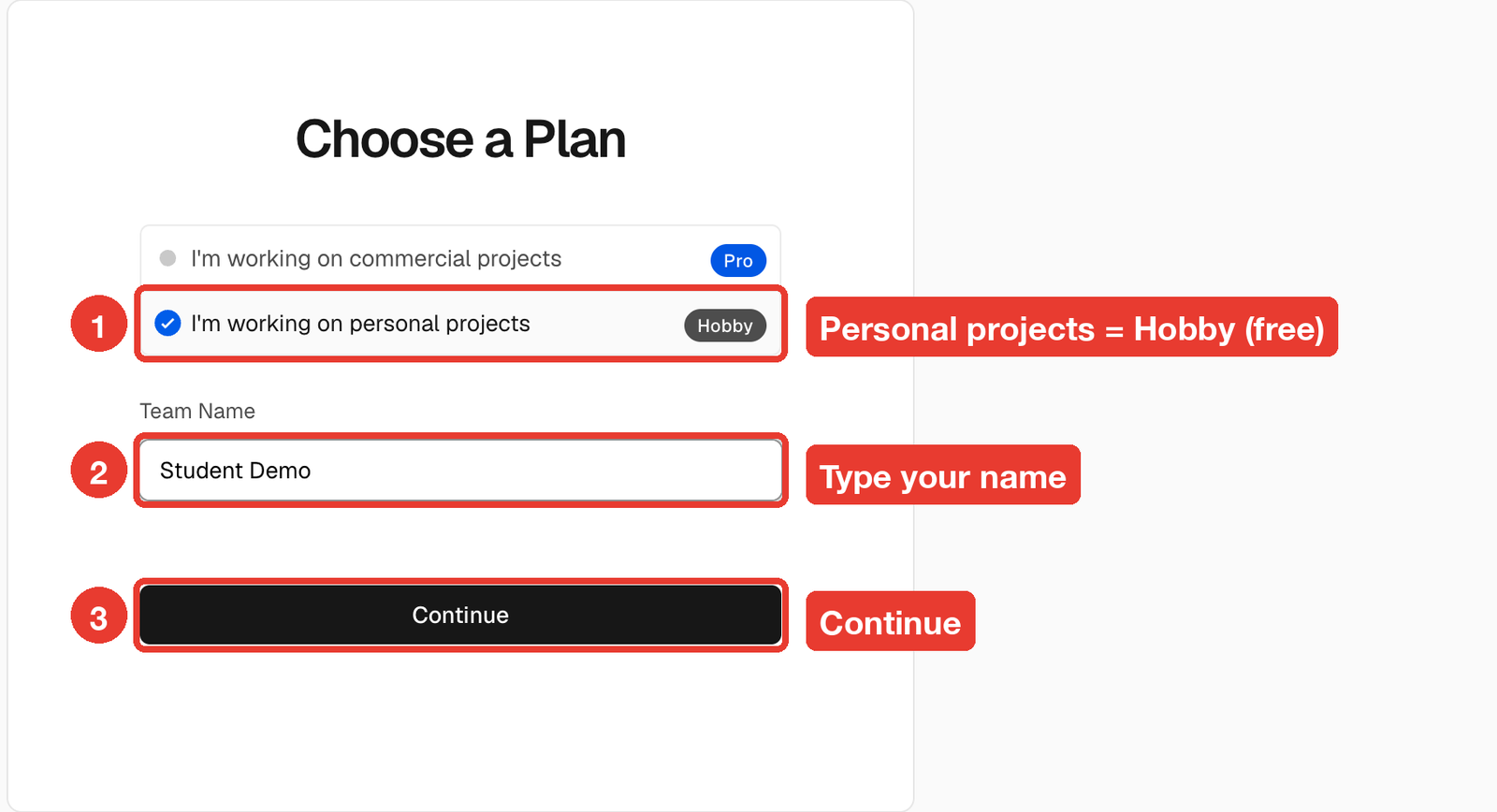
3. Pick the free plan
Choose I'm working on personal projects. That's the Hobby plan, which is free. Type your name and click Continue.
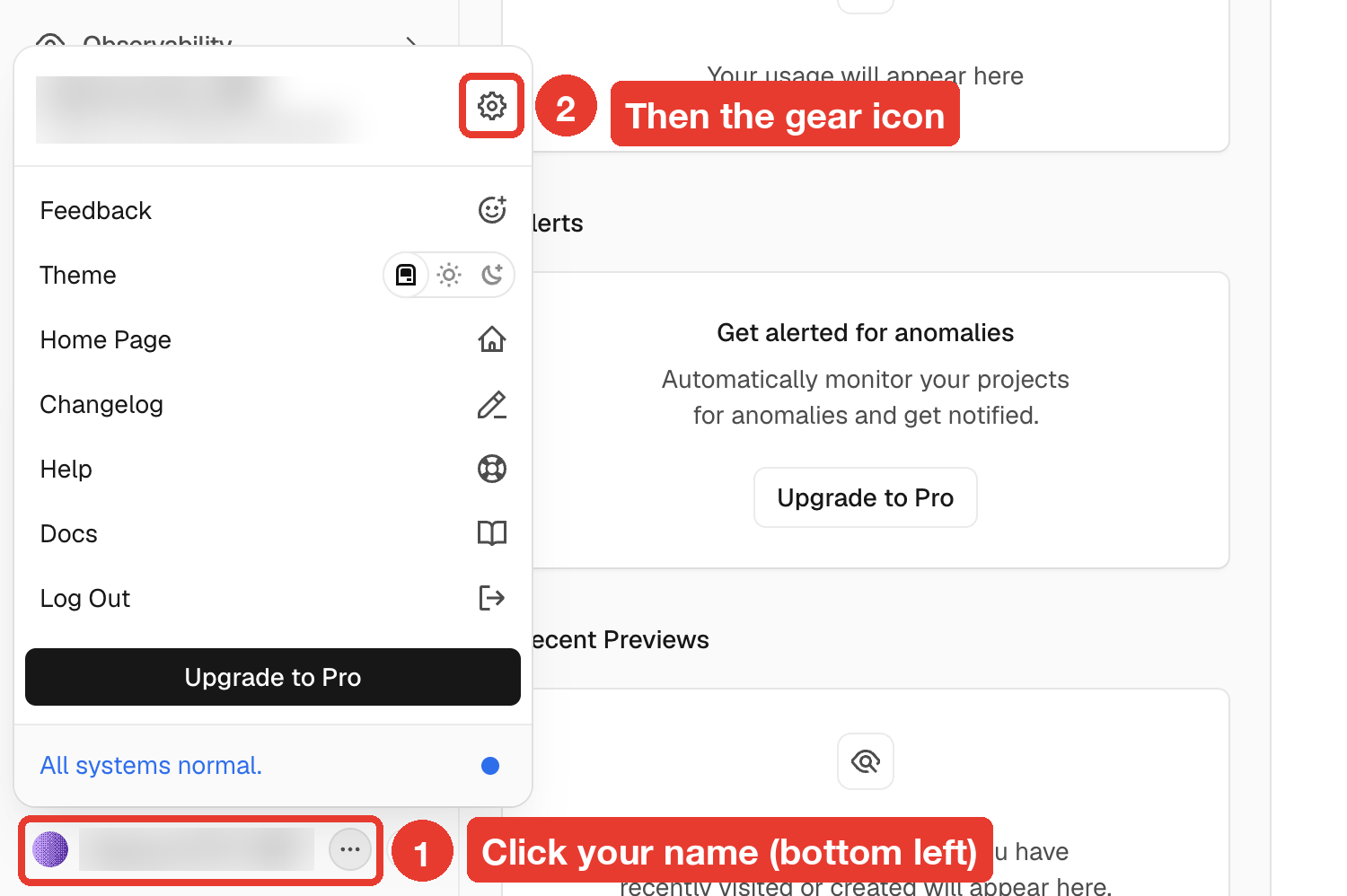
4. Open your account settings
On your dashboard, click your name in the bottom-left corner, then the gear icon at the top of the menu that opens.
5. Go to Tokens
In the left sidebar, click Tokens. You can also go straight to vercel.com/account/settings/tokens.
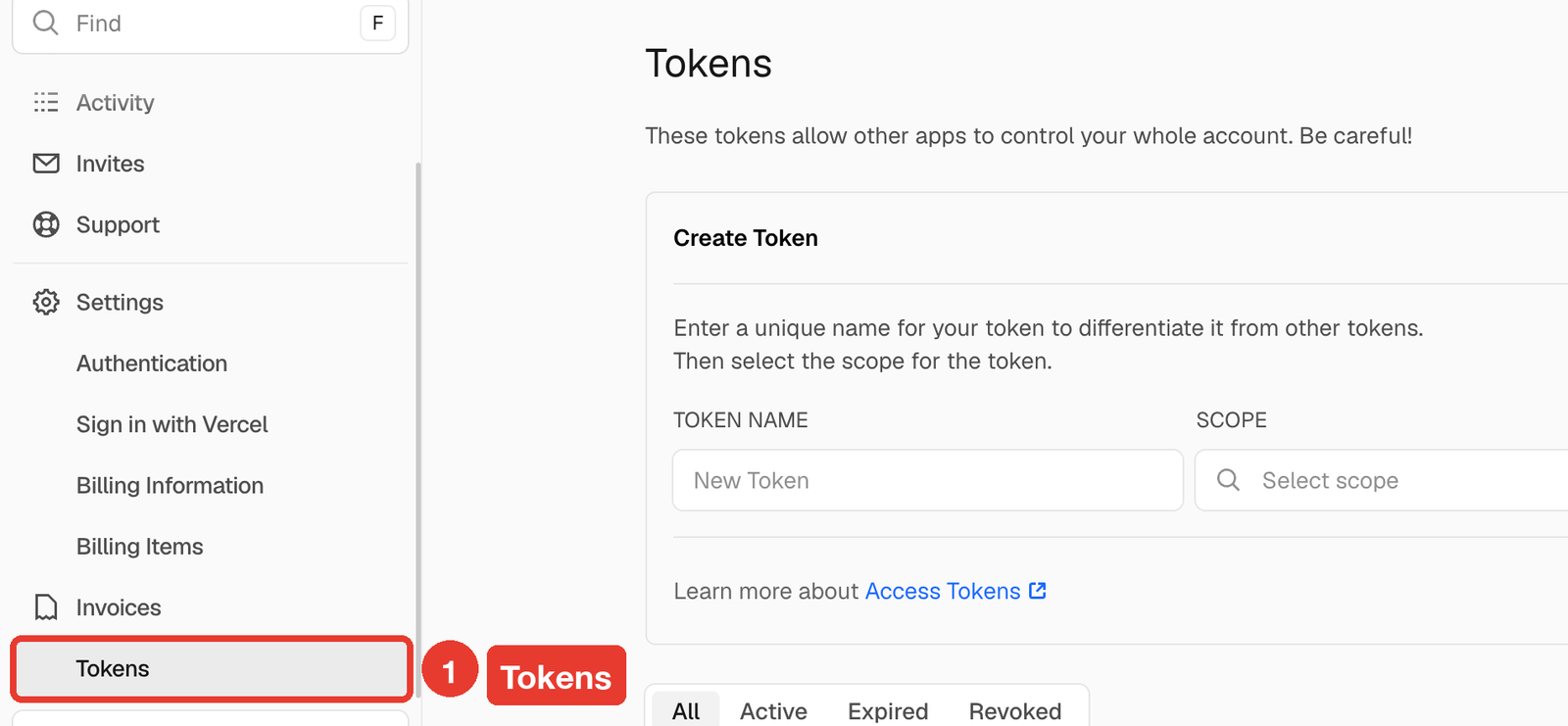
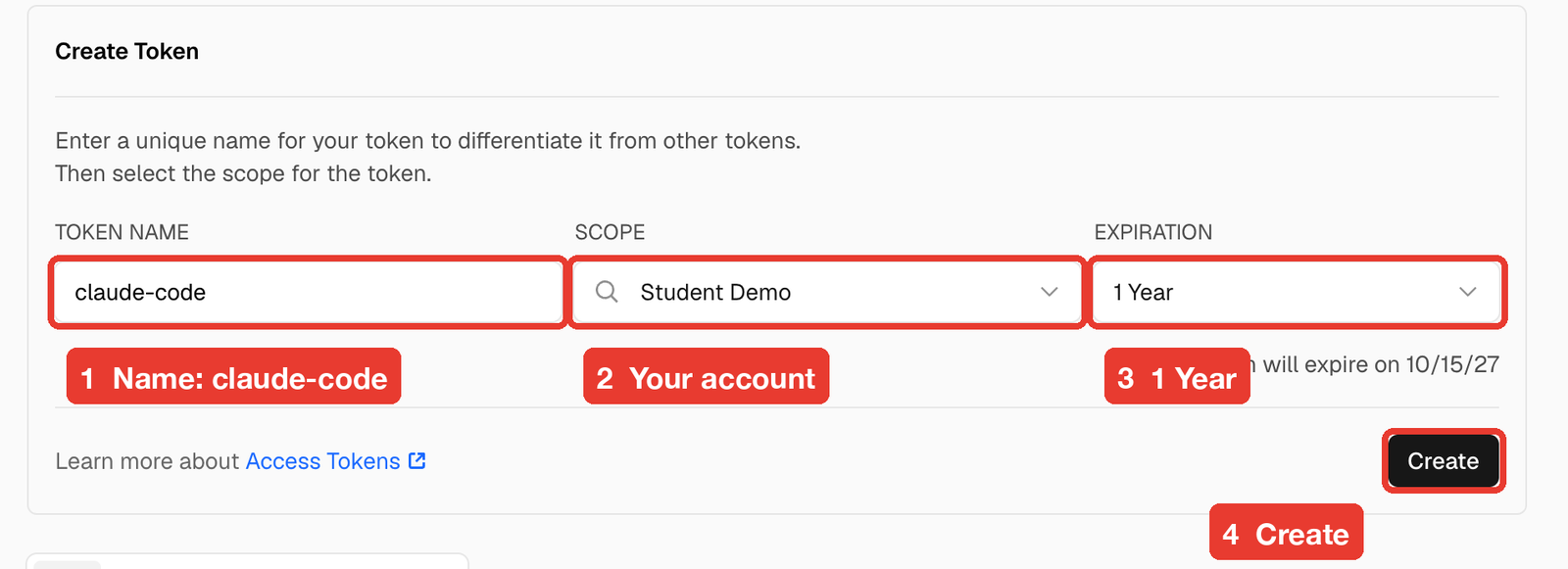
6. Create the token
Fill in the Create Token form:
- Token name:
claude-code - Scope: click it, choose your account name, then All Projects
- Expiration: 1 Year
- Click Create
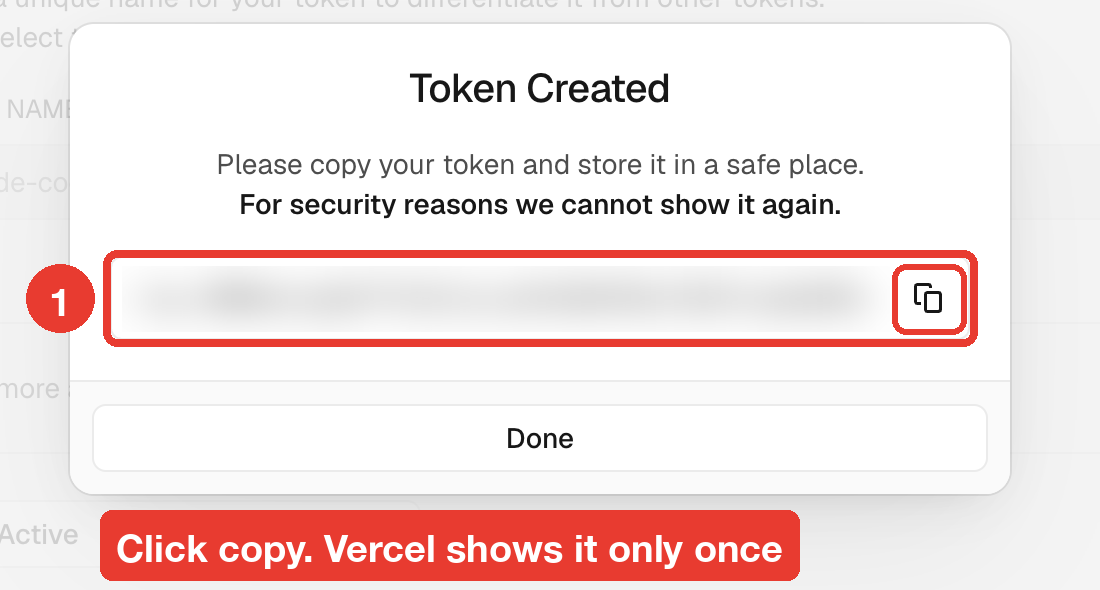
7. Copy it right away
Click the copy icon next to the token. Vercel shows it only once. If you close this box before copying, delete the token and make a new one.
8. Give it to Claude Code
Open Claude Code in your course folder and paste this, with your token in place of <PASTE TOKEN>:
Here is my Vercel token: <PASTE TOKEN>. Save it as VERCEL_TOKEN in a .env file in
my course folder, add .env to .gitignore so it never goes to GitHub, then install
the Vercel CLI and confirm the token works by running: vercel whoami
You're done when Claude Code shows your Vercel username from vercel whoami.
If something goes wrong
- Lost the token, or pasted it somewhere public? Go back to the Tokens page, open the ⋯ menu on that token, click Delete, and create a new one.
vercel whoamifails? The token was probably copied with a missing character. Make a new one and paste it again.- No text from Vercel? Check the number and country code, then click Back and try again.